Local Chatbot
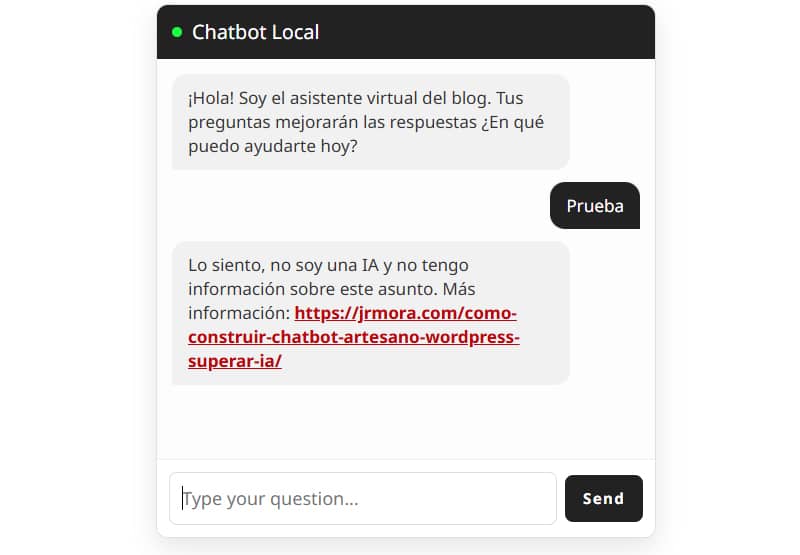
Here’s the Chatbot Local plugin in action. (At the moment, there aren’t many questions added.) If you’d like to try it out with more answers added, You can do it here.
If you’re looking for "chatbot" In the WordPress repository, you’ll find hundreds of AI-based plugins or external services. AI is everywhere. It’s impossible to find something simple and lightweight that lets you build a support chat based solely on your own responses. That’s how Chatbot Local came about – I was looking for something I couldn’t find. Although I know that these days, with the number of plugins Of all the ones that exist, it’s more than likely that only three or four will actually install it; I think this plugin fills a gap.
A while ago I shared it here A basic code-based system for adding a keyword-based fuzzy logic chatbot (Fuzzy Search) to WordPress. It’s lightweight, works well, It doesn’t rely on any AI, nor on external APIs or third-party calls, and it protects your privacy. However, implementing this involved fiddling with code snippets, manually pasting blocks or tweaking theme files – something not everyone wants to do or knows how to do.
To solve this problem, I have developed Chatbot Local, which will soon be available as a plugin on the repository of WordPress, I submitted it for review on 2 August, and you can try it out now. At the moment it’s in English, but it will be translated in the repository in due course.
29 August. The plugin is approved in the repository following the necessary fixes.
Why switch from a snippet to a dedicated plugin?
Unlike simply adding individual functions to your theme’s functions.php file or to a snippet manager, Packaging it as a native plugin has enabled us to organise everything much more effectively, improve security, add an administration panel and resolve key performance and database issues:
1. Strict conditional loading of assets (WPO)
One of the main problems with adding code manually is controlling when styles and scripts are loaded. In Chatbot Local, both the CSS and the JS are only queued if the page or post actively contains the shortcode [chatbot-local]. If the shortcode is not present in the content, the plugin does not load anything at all at that URL.
2. Visual control panel and knowledge base management (questions and answers)
Gone are the days of having to edit PHP arrays or JSON files manually via FTP. From the plugin’s admin menu, you can:
- Configure the rules in JSON: A dedicated editor with validation to define your tags (tags) and responses (res) runs in the background; all you see are two simple text boxes for each question and its answer.
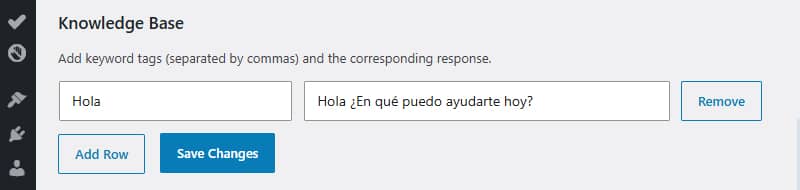
You can add individual words separated by commas or phrases which, even if they contain those individual words, will return a different result, allowing you to refine results for specific phrases and cover more possibilities.
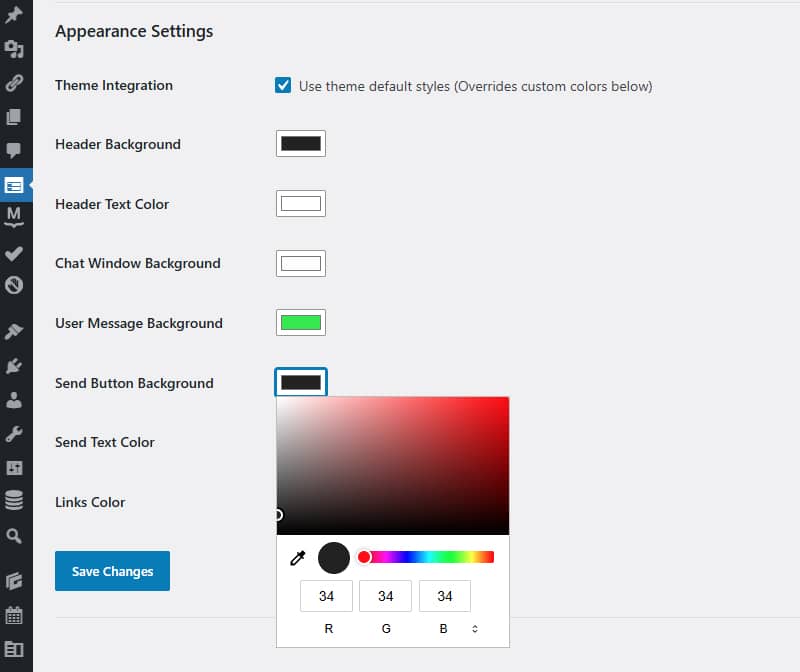
- Style customisation: You can change the colours of the header, the ‘Send’ button and text, the background and the chat speech bubbles. If you leave the ‘default style’ tick box ticked, it will be displayed using your blog’s CSS.
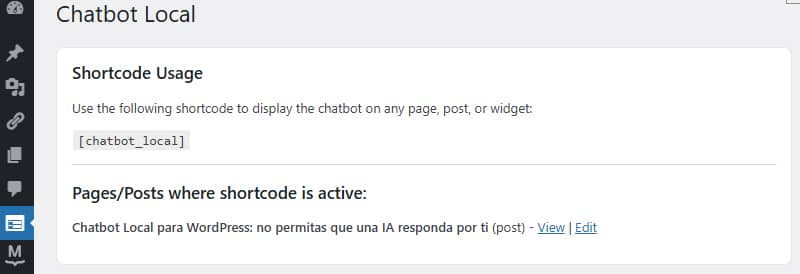
- Shortcode detector: The dashboard scans the database and displays a list of the pages or posts where you added the shortcode.
3. Logging queries using the native REST API
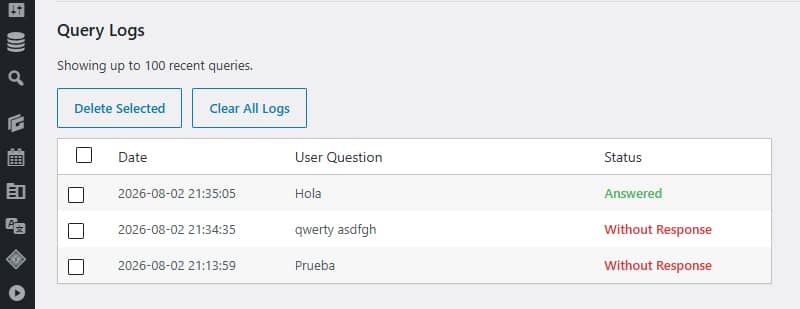
The chatbot includes its own lightweight table in the database (wp_chatbot_logs). Each user interaction is sent via a secure endpoint of the WordPress REST API, allowing you to view the last 100 queries from the dashboard using these references and options:
- Which questions have been answered (matched)?
- Which searches have returned no matches (unmatched) – ideal for identifying which content or keywords you need to add to the knowledge base in order to improve responses and cover a wider range of potential real-world queries.
- Bulk or individual deletion of records directly from the log table.
4. Privacy and security
Data privacy (Zero PII): No IP addresses, user data or cookies are stored. The only information sent to the database is the text of the question and its status (matched or unmatched).
Security and Sanitisation: The endpoint of the REST API cleans and sanitises inputs using sanitize_text_field() before making any queries.
Secure Queries (Anti-SQL Injection): We use WordPress’s native $wpdb->insert() method, which automatically prepares and escapes all values securely using placeholders (%s).
No data is shared with third parties: All information is stored on your own server (in the wp_chatbot_logs table). There are no outgoing calls and no external services access these logs.
5. Clean uninstallation (Zero Bloat)
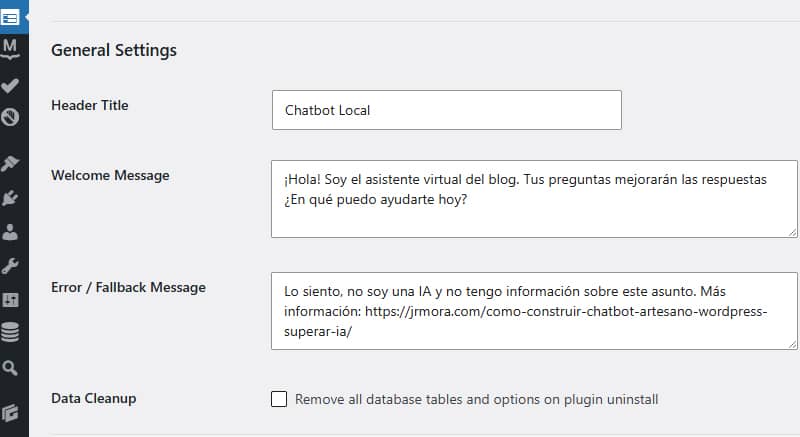
If you decide to delete the plugin, include an explicit ‘complete clean-up’ option that deletes the logs table and all settings stored in the options table, leaving the database exactly as it was.
How it works
The principle remains the same as the one I set out in my first post: privacy and speed.
- No external APIs: It does not use OpenAI, ChatGPT or third-party servers. All keyword processing takes place locally using Vanilla JS.
- Text normalisation: The algorithm removes accents and capital letters to ensure accurate matches.
- Automatic link conversion: If the response includes a URL (http:// or https://), the script automatically converts it into a clickable HTML link.
Instalación rápida
- Download, Install and activate the plugin, then go to the new Chatbot Local menu to set up your welcome message and rules.
- Paste the shortcode
[jlca-chatbot-local]
If you try it out before it’s published in the WordPress repository and you have any suggestions or spot anything that needs tweaking, or whatever, you can leave a comment in support or via the contact form.
This is my fifth plugin, Here they all are.