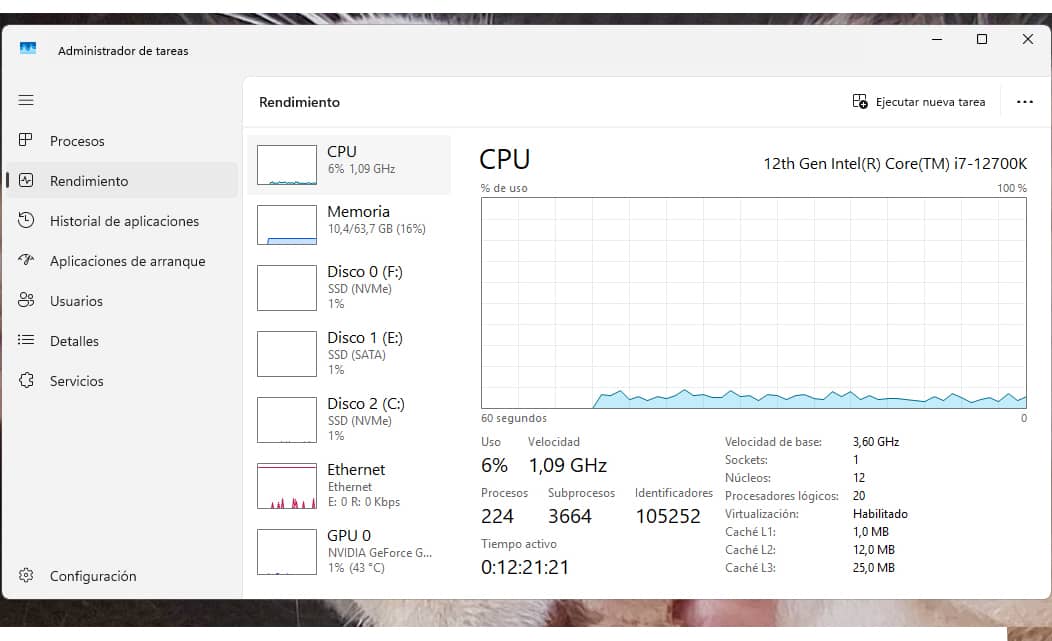
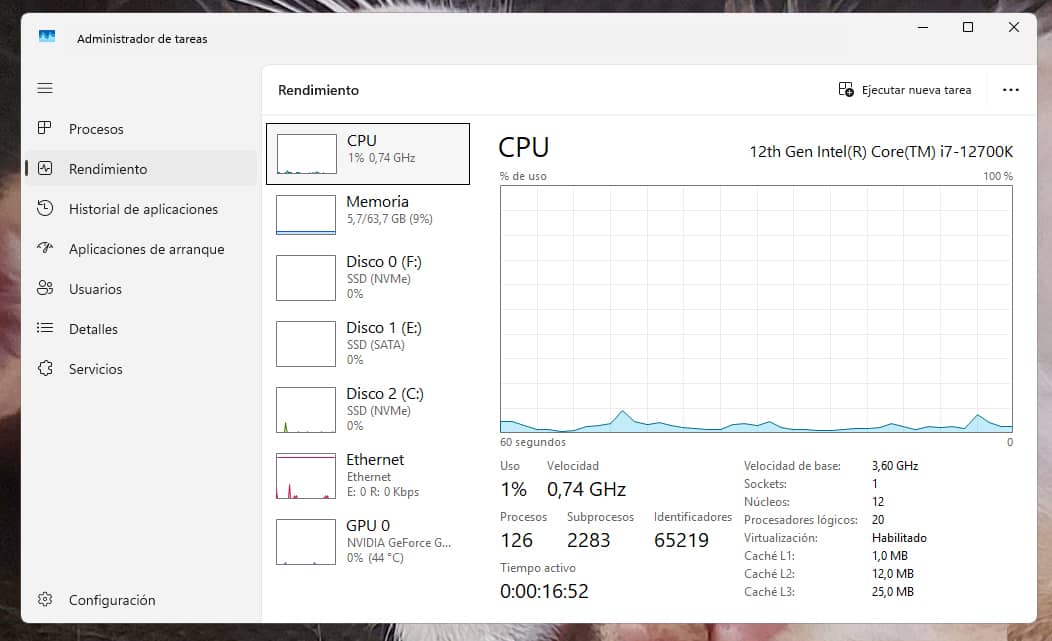
Here is the example before and after clustering processes on a Windows 11 installation with 64 GB of RAM. We went down from 224 to 126 processes at once at idle. A reduction of almost 100 processes.
In the past, Windows used to group many system services into a single svchost.exe process. However, starting with Windows 10 (version 1703), Microsoft changed this: if your PC has more than 3.5 GB of RAM, Windows splits each service into its own independent process. This is a decision based purely on the amount of memory detected at startup.
And why separate the processes? Well, mainly because by isolating them, if one service fails, the whole group does not go down. It is also a question of visibility. It is easier to see in the Task Manager which exact service is consuming CPU (without having to investigate within a group). It is a security issue, as isolation between processes avoids chain errors.
But we can trick Windows by setting an artificially high threshold. Believing that it does not have enough RAM to "waste", Windows is forced to pack services into fewer containers, drastically reducing the number of total processes.
The benefits of clustering processes are several, such as a reduction of processor overhead. Each independent process requires the CPU to manage its own threads, priorities and memory accesses. By grouping them together, the processor's management workload is reduced.
It is much easier to monitor the Task Manager without hundreds of identical lines and we get a residual memory saving as each open process consumes a small amount of RAM by the simple fact of existing (its own support structure). Grouping them together scrapes a few MB of phantom consumption.
The only possible negative impact is the one mentioned above. If a service fails in a clustered system, it can drag down the other services that share the same container, causing a restart of several functions at once. If they are separate, only that particular service fails without affecting the rest. Separate processes make it more difficult for a security failure in one service to affect other components of the system. If you encounter an unexpected error, you can always revert the clustering.
This is not a hack or a new miracle trick. It is something that can be found in Microsoft' s official documentation on this behaviour on its Microsoft Learn technical portal, which is aimed at developers and system administrators.
If you want to try it, here is a table with some equivalences according to your RAM. It works for both Windows 10 and Windows 11. To apply it, just open CMD or PowerShell as administrator, run the command and reboot.
The SvcHostSplitThresholdInKB register sets a RAM "threshold". If your PC has more RAM than the value set in the command, Windows will split the processes. If it has less, it groups them together. That's why in the following table we give you commands with a value always higher than your current RAM; this way we trick Windows into grouping services together in bulk.
(If your amount of RAM is not in the table, simply calculate twice your current memory in GB and apply the formula: GB amount x 1024 x 1024).
| Your current RAM | Command to apply (Group your processes) |
|---|---|
| 64 GB | reg add "HKLM\SYSTEM\CurrentControlSet\Control" /v SvcHostSplitThresholdInKB /t REG_DWORD /d 134217728 /f (128GB threshold applies) |
| 32 GB | reg add "HKLM\SYSTEM\CurrentControlSet\Control" /v SvcHostSplitThresholdInKB /t REG_DWORD /d 67108864 /f(64GB threshold applies) |
| 16 GB | reg add "HKLM\SYSTEM\CurrentControlSet\Control" /v SvcHostSplitThresholdInKB /t REG_DWORD /d 33554432 /f(32GB threshold applies) |
| 8 GB | reg add "HKLM\SYSTEM\CurrentControlSet\Control" /v SvcHostSplitThresholdInKB /t REG_DWORD /d 16777216 /f (16GB threshold applies) |
| 4 GB | reg add "HKLM\SYSTEM\CurrentControlSet\Control" /v SvcHostSplitThresholdInKB /t REG_DWORD /d 8388608 /f (8GB threshold applies) |
To revert any of these changes back to the factory state, simply use this other command and reboot.
reg delete "HKLM\SYSTEM\CurrentControlSet\Control" /v SvcHostSplitThresholdInKB /f